FAQs

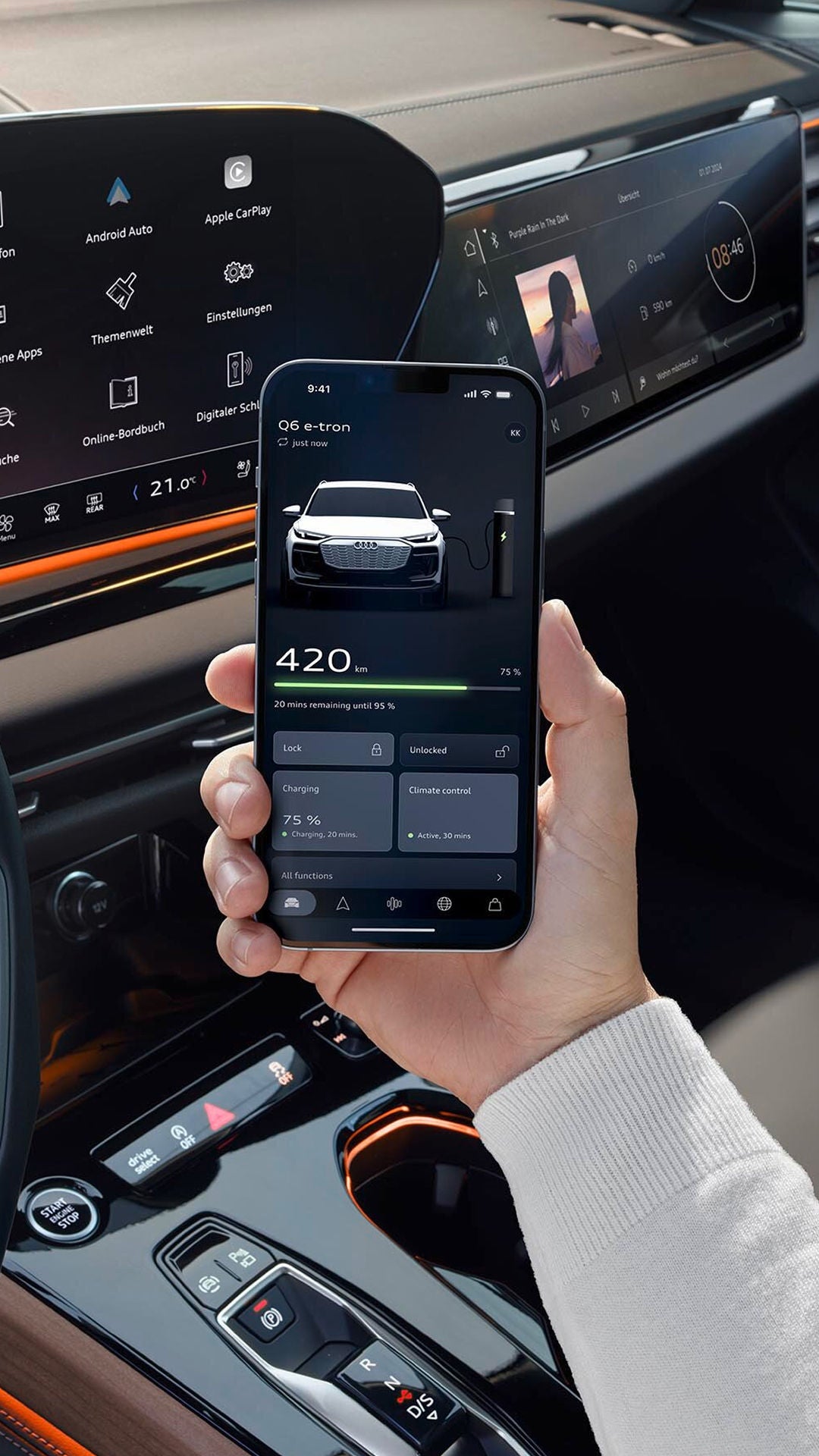
A hand holding a mobile phone with the myAudi app displayed on its screen

Connecting your non-touchscreen A3, A6, A7, A8 or Q3

To make the most of your Audi Connect Infotainment Services you will need to download the myAudi app and log in to your vehicle's MMI. Logging in will enable you to access extra services, like sending destinations straight to your car from the myAudi app*. Follow the steps below to get connected.
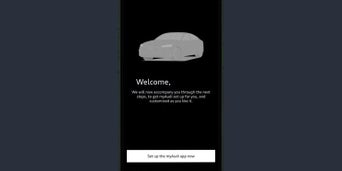
The myAudi app displaying the 'Let's Go' and 'Discover myAudi' buttons

Step 1

Download the myAudi app and tap ‘Set up the myAudi app now’ to create a myAudi account or login with your existing myAudi account details.

The myAudi app displaying the 'Account settings' screen with the 'PIN' link highlighted

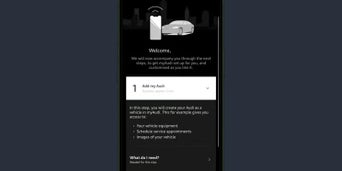
Step 2

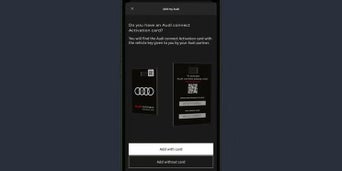
Select ‘Add my Audi’.

The myAudi app displaying some options with 'Add my Audi' selected

Step 3

Select ‘Add without card’.

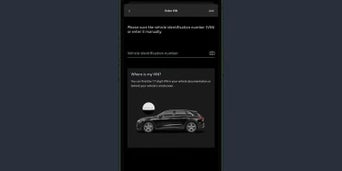
The myAudi app displaying the screen to add your VIN, either via a photo or text entry

Step 4

Enter your VIN using the keyboard or camera on your phone. This will add your Audi to your myAudi account.

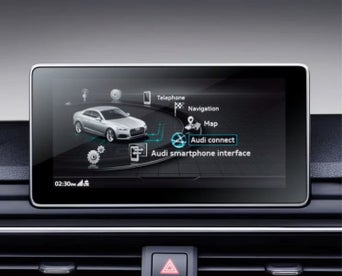
An Audi dashboard screen displaying options with 'Audi Connect' selected

Step 5

Now you will need to log into your car with your myAudi app details. In your Audi, select ‘Menu’, then ‘Audi Connect’.

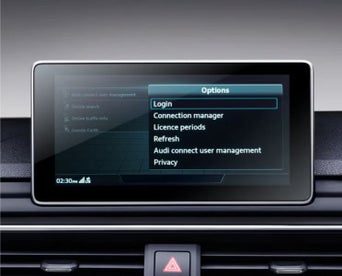
An Audi dashboard screen displaying options with 'Login' selected

Step 6

Access the ‘Options’ menu by selecting the right bracket, then select ‘Login’.

An Audi dashboard screen displaying the username and password fields on the Login screen

Step 7

Add your myAudi email address for the username and your myAudi password, then select ‘Login’.

The myAudi app displaying the next steps to take in the setup process

Step 8

Back on your phone, if this is your first time using the myAudi app, select ‘confirm identity’ and enter your details following the next steps on the app.

The myAudi app displaying the 'My vehicles' screen with an Audi A4 Avant model selected

Step 9

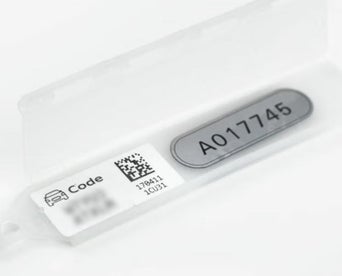
To access extra services* like being able to unlock/lock your car and check your fuel levels you need to become a key user. You will need your key tag that came with your car keys for this.

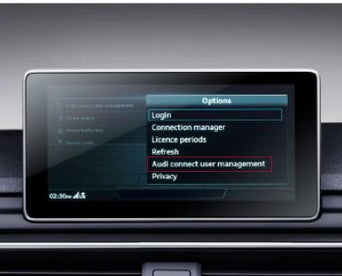
An Audi dashboard screen displaying options with 'Audi Connect user management' highlighted

Step 10

Go to the Options menu again by selecting the right bracket, then ‘Audi Connect user management’.

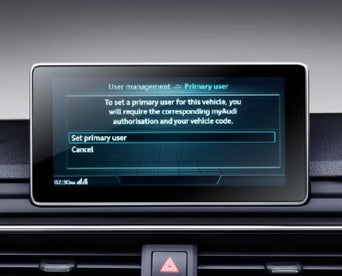
An Audi dashboard screen displaying the 'User Management' screen with 'Set primary user' selected

Step 11

Select ‘Set primary user’ (key user).

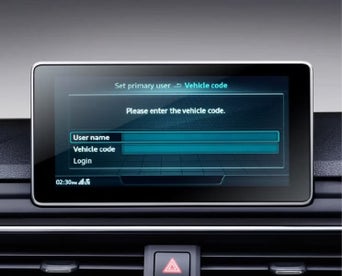
An Audi dashboard screen displaying the username & vehicle code fields on the Set primary user screen

Step 12

Scratch the 10 digit code from your key tag and enter this below. Select ‘Login’. You are now able to access all of your myAudi app features* and will be able to see your car in the app.

Get more from myAudi Service Reminders

Once you have become a key user, with Automatic Service Reminder and Predictive Maintenance you'll never miss a service appointment again. Your car can automatically send vehicle and service data to your preferred Audi Centre so they can conveniently organise your service for you. You will need to activate this in the myAudi app and select your preferred Centre.

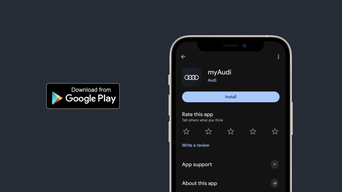
Get the myAudi app
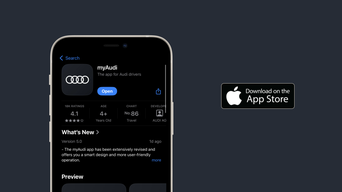
The Google Play store on a mobile phone displaying the the myAudi app information

Get myAudi on Android

Need help connecting your car to the myAudi app?

To get connected, Learn more by completing the form below

Need help?

We have a dedicated myAudi team on hand  to help with any questions you may have.

Call us on 0860 434 838 or view our FAQ’s

Email: support@audiforum.co.za


Loading..